Overview
Finding the right data quickly is essential for managing your inventory. The MasonHub OMS provides flexible search parameters to help you locate individual items, supplies, or specific product groups.
Navigating to the Catalog
To begin, log in to the MasonHub OMS and click on Catalog in the left-hand navigation, then select the SKUs link.
Watch a Video Demo
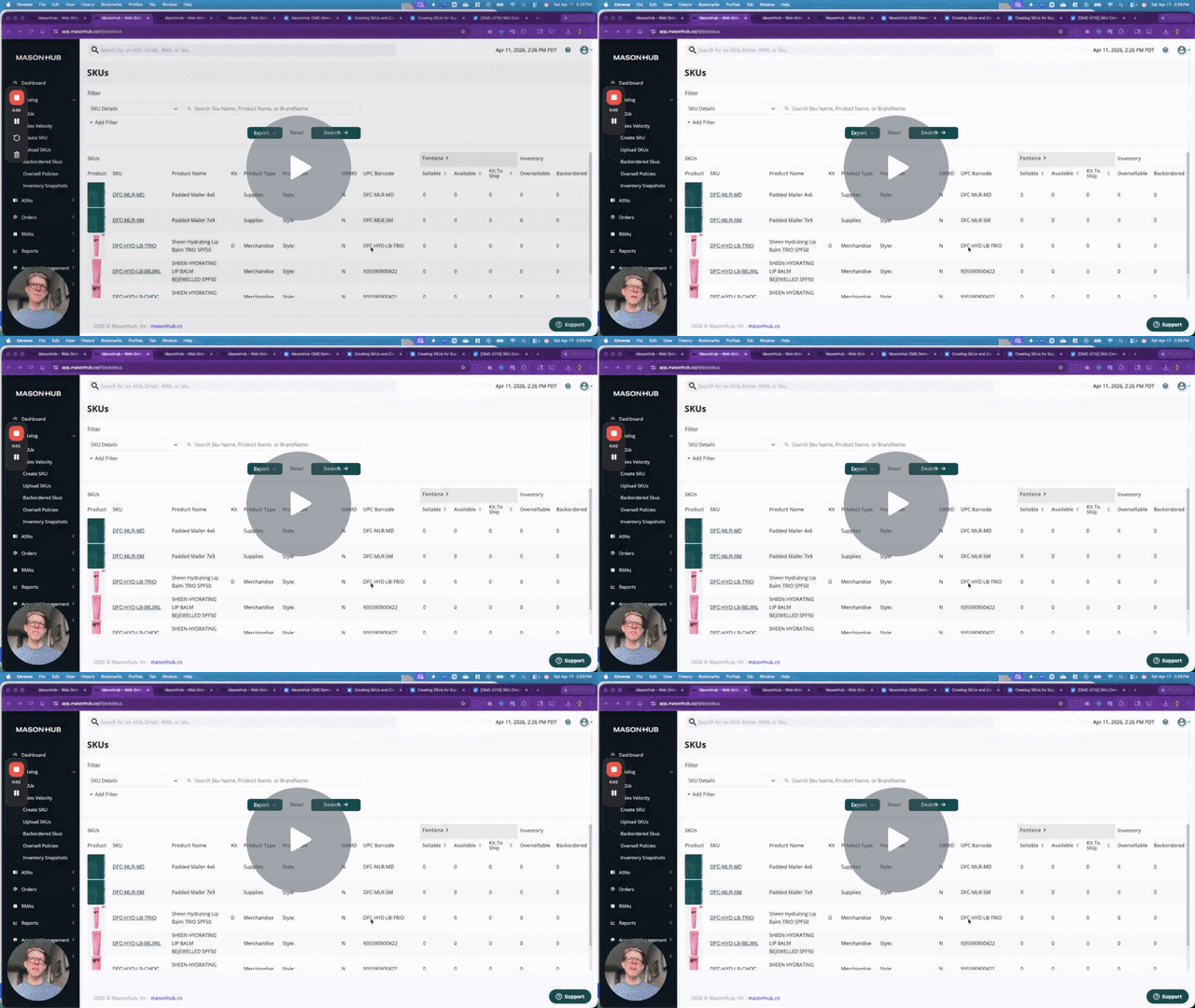
MasonHub OMS Demo: How to Search for SKUs in Your Catalog - Watch Video
Key Search & Filter Methods
- Search by Product Name or SKU: Enter the product name or specific SKU string. Partial matching works for 3+ characters.
- Search by UPC/Barcode: If you have the physical item or a barcode list, enter the UPC to pull up the exact record.
-
Filter by Product Type: Toggle between Merchandise (standard products) and Supplies (packaging, inserts, dunnage).
- Pro-Tip: If an item is categorized incorrectly, on the SKU page you can click Action > Edit to change the SKU type.
- Shopify Variant Properties: You can search by Size or Color. These values are automatically pulled from your Shopify store properties and synced to the MasonHub system. They are also available as individual fields when creating SKUs via the MasonHub API.
Exporting Your Data
Once you have filtered your search results, you can export the data for reporting or bulk editing:
- Click the Export button.
- Choose your export type:
- Summary Export: Includes current inventory levels and availability.
- Export for Re-upload: Use this version if you plan to make bulk changes and re-import via CSV.
- The system will process your request and email the file to your registered account email.